

CSV File Editing Simplified with the Snapizzi List Editor

CSV roster data flowing into Snapizzi, where subject rows, columns, and data fields can be edited directly within the project.

CSV File Editing Simplified with the Snapizzi List Editor

pull-quote-left

Your CSV may start the project, but it doesn’t have to stay frozen after you upload it.

snapizzi-favicon

The Snapizzi Team

Originally published

10 years ago

Updated

1 week ago
4 min read 745 words

CSV File Editing Simplified with the Snapizzi List Editor

CSV roster data flowing into Snapizzi, where subject rows, columns, and data fields can be edited directly within the project.

CSV File Editing Simplified with the Snapizzi List Editor

pull-quote-left

Your CSV may start the project, but it doesn’t have to stay frozen after you upload it.

Your CSV may start the project, but it doesn’t have to stay frozen after you upload it.

snapizzi-favicon

The Snapizzi Team

Originally published

10 years ago
10 years ago

Updated

1 week ago
1 week ago
4 min read 745 words
snapizzi-favicon

The Snapizzi Team

Originally published

10 years ago

Updated

1 week ago
4 min read 745 words

A CSV file is often the starting point for a high-volume photography project.

Schools, sports organizations, dance studios, and other organizations may provide photographers with rosters containing names, IDs, grades, teachers, teams, groups, and other information needed to organize a Picture Day.
But roster data rarely stays perfect.

A name may need to be corrected. A student may need to be added. A missing column may become necessary. Or the photographer may realize that additional information would make the rest of the workflow easier.

Originally, making those changes meant returning to the source spreadsheet, editing the file, and potentially uploading it again.

The Snapizzi List Editor changed that.

Once a CSV has been uploaded to a Data Project, photographers can manage much of that project information directly inside Snapizzi.

Your CSV Is the Foundation of a Data Project

Your CSV Is the Foundation of a Data Project

A properly prepared CSV provides the structured data Snapizzi uses throughout a Data Project.

That data can include subject names, IDs, groups, gallery names, passwords, and other fields relevant to the photography workflow. Snapizzi can also use specific fields to control customer search behavior and recognize group assignments.

If you are preparing a roster for the first time, start with our CSV File Setup guide.

You can also read How CSV Files Automate Picture Day for a broader look at how roster data fits into a modern high-volume photography workflow.

But uploading the CSV doesn't mean the data has to remain exactly as it arrived.

Edit Project Data Directly in Snapizzi

Edit Project Data Directly in Snapizzi

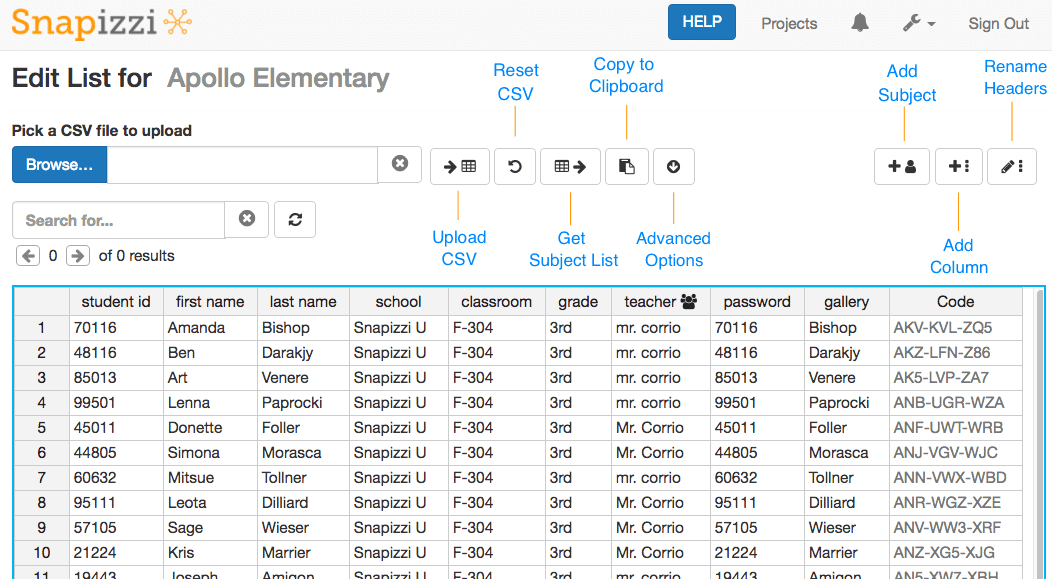
After your CSV has been uploaded, the List Editor provides tools for managing the information associated with the project.

You can:

  • Add a subject when someone needs to be included after the original roster was created.

  • Add columns for information such as Gallery, First Name, Last Name, or other project data.

  • Rename or edit supported column headers when your project structure needs adjustment.

  • Copy the project data to your clipboard for use elsewhere.

  • Download the Subject List containing the project data Snapizzi has generated throughout the workflow.

For photographers managing hundreds or thousands of subjects, these small changes can eliminate unnecessary trips between Snapizzi and a spreadsheet application.

Snapizzi List Editor showing subject data with tools to add subjects and columns, rename headers, upload CSV files, and download a Subject List.

Make Roster Changes Without Starting Over

Make Roster Changes Without Starting Over

Picture Day data changes.

A school may send an updated student name. Someone may arrive who wasn't on the original roster. A photographer may decide that another field would be useful for organizing galleries or communicating with customers.

The important part is that a minor data change should not require rebuilding the workflow.

By keeping routine editing inside the project, Snapizzi helps the roster remain a working part of the photography workflow rather than a static file that was imported once and forgotten.

That becomes increasingly valuable as the project progresses and Snapizzi connects subject information with Camera Cards, photographs, galleries, Subject Lists, proofing, and other workflow outputs.

Editing Is Different from Replacing the CSV

Editing Is Different from Replacing the CSV

There is an important distinction between editing your existing project data and replacing the uploaded roster.

Before Camera Cards have been issued, Snapizzi allows you to reset the list and upload a corrected CSV. Resetting removes the existing subject data, group data, and headers so the roster can be uploaded again.

Once Camera Cards have been issued, however, the reset option is no longer available.

You also should not simply upload another CSV over the existing one, because doing so can create duplicate subjects.

That is one reason the List Editor is useful: many routine corrections can be made without replacing the project data at all.

For the complete process, see CSV File Uploading and Editing.

Start with Clean Data, Then Make Changes as Needed

Start with Clean Data, Then Make Changes as Needed

The List Editor makes correcting project information easier, but beginning with a well-structured CSV is still the best approach.

Snapizzi expects CSV files to use UTF-8 encoding, and properly formatted name fields help features such as subject search work correctly. Your CSV can also contain additional columns that define how your particular project is organized.

If you run into encoding problems, Snapizzi also provides a free UTF-8 Validator to help locate troublesome characters before importing your file.

The goal isn't to make the original roster perfect forever.

It's to start with good data and have the tools to adapt when real-world Picture Day information changes.

A Small Feature That Became Part of the Workflow

A Small Feature That Became Part of the Workflow

When CSV editing inside Snapizzi was first introduced, it solved a straightforward problem: photographers no longer needed to download a Subject List, make routine edits in Excel, and upload the information again.

Today, that capability feels much less like a standalone feature.

It's simply part of managing a modern Snapizzi Data Project.

And that's exactly what good workflow software should do—remove another unnecessary step from the process.

Editor's Note: This article originally announced the introduction of CSV editing through the Snapizzi List Editor. Since then, in-project data management has become an established part of the Snapizzi Data Project workflow. The article has been updated to reflect how photographers use these tools today.

Related Articles

Explore more features, announcements, and workflow improvements.

Related Help Articles

Step-by-step guides and documentation from the Snapizzi Knowledge Base.

Continue Exploring Snapizzi

Content Directory — Browse all articles and workflow resources

Release History — Explore new features and product updates

Knowledge Base — Find tutorials and documentation

User Love — See how photographers use Snapizzi